Connection Guide for Multiple AMS Units with Different Printer Models
Bambu Lab H2S • Série Comercial H2
Connection Guide for Multiple AMS Units with Different Printer Models
¶ AMS Connection Components
Before connecting an AMS to your printer, make sure you have the compatible AMS model and filament buffer based on your need and your printer. If you are connecting multiple AMS units, you will also need the appropriate type 4-in-1 PTFE Adapter.
This section will introduce components neccesary for AMS connection.
¶ AMS
Bambu Lab AMS seires include AMS (the first generation), AMS 2 Pro (the second generation), AMS HT, and the AMS lite designed for the A1 series.
Note: The step height of the cable provided with the AMS is 1.1 mm, while the step height of the cable provided with the AMS 2 Pro or AMS HT is 2.5 mm.

The AMS, AMS 2 Pro, and AMS HT (referred to collectively as “AMS” below) all use a two-stage feeding system. The internal Feeder Unit (see ① below) pushes the filament into the assist motor (see ② below), which then continues to feed the filament into the printer’s toolhead.
Because the extrusion speed of the toolhead extruder and the feeding speed of the assist motor are rarely perfectly matched, a filament buffer is required when connecting an AMS to a printer.

The AMS lite uses a single-stage feeding system. The Feeder Unit feeds filament directly into the toolhead, so no filament buffer is needed.

📌 Note: The AMS lite is only compatible with A series printers. Each A series printer supports only one AMS lite.
¶ Filament Buffer
Introduction:
The filament buffer assists with feeding filament from the AMS to the printer by adjusting the feeding speed and detecting filament tangles.
It works by using a slider whose sliding distance provides a length of slack for the filament. The AMS adjusts its assist motor output based on the slider position, feeding filament in time without affecting toolhead extrusion.
A filament buffer is required when connecting an AMS to a printer.

Types:
Different printers require different filament buffers. Refer to the table below to find the compatible filament buffer for your printer model.
| Printer Model | Filament Buffer | Purchase Link |
|---|---|---|
| A1 Series |  |
AMS Hub – A1 Series |
| X1/P1 Series | For Single AMS Connection: For Multiple AMS units Connection:  |
Filament Buffer AMS Hub |
| P2S |  |
Filament Buffer – P2S |
| H2 Series | H2D/H2C: H2S:  |
Filament Buffer – H2 Series |
| X2D |  |
Filament Buffer – X2D |
¶ 4-in-1 PTFE Adapter
Introduction:
The 4-in-1 PTFE Adapter is an important accessory for enabling multiple AMS connections on a 3D printer, allowing you to use more filaments in your printing job.
It has a “four-in, one-out” structure. The inlet end has four holes for inserting four PTFE tubes to connect to the AMS or external spool. The outlet end has one hole for connecting to the printer via one PTFE tube.
Types:
There are two versions of 4-in-1 PTFE adapter: the standard version and the H2 series dedicated version.
Note:
The H2C printer requires the H2 series dedicated 4-in-1 PTFE Adapter, while the P2S and X2D requires the standard 4-in-1 PTFE Adapter. Other printer models can use either version as needed.
| Type | Image | Purchase Link |
|---|---|---|
| 4-in-1 PTFE Adapter |  |
4-in-1 PTFE Adapter |
| H2 Series Dedicated 4-in-1 PTFE Adapter |  |
H2 Series Dedicated 4-in-1 PTFE Adapter |
¶ H3C AMS Connection Guide
- Maximum connections: Supports up to 4 AMS / AMS 2 Pro / AMS HT units connected at the same time.
- Multi-color printing: All 4 AMS 2 Pro units can be connected to printtool 1, and the 8 slots in the AMS 3H can also be used, so the maximum number of colors is 4 × 4 + 8 = 24 colors.
- Required accessories: The H3C Buffer must be purchased separately. Some setups require a 4-in-1 PTFE Adapter.
For details, please refer to H3C Connecting Multiple AMS Guide.
¶ H2 Series AMS Connection Guide
-
Maximum number of connected AMS units:
Supports up to 4 AMS 2 Pro units and 8 AMS HT units connected simultaneously. -
Maximum number of colors:
The H2C/H2D is a dual-nozzle printer. In the most extreme scenario, all connected AMS 2 Pro/HT units can be assigned to one nozzle, while the other nozzle uses an external spool. This allows up to 4×4 + 8×1 + 1 (external spool) = 25 colors.
The H2S is a single-nozzle printer, so it supports up to 24-color printing. -
Accessories required:
The filament buffer is built in — no additional purchase is needed.
Some setups require a 4-in-1 PTFE Adapter.
The connection method for AMS with H2D and H2C is the same. You can adjust based on your needs. For details, see: H2C + Multiple AMS Connection Guide.
¶ Cable Connection
6-pin cables are required to connect AMS to 3D printer for power and communication — the number of cables depends on how many AMS units you are connecting.
Each AMS has two 6-pin ports on the back, allowing you to daisy-chain multiple AMS units.

Note: When connecting an AMS 2 Pro or AMS HT, always use the included new-version 6-pin cable. Using a 6-pin cable from the AMS (1st gen) may cause unstable communication between AMS and printer. The AMS (1st gen) is compatible with the new-version 6-pin cable.
¶ PTFE Tube Connection
When connecting 4 AMS 2 Pro units and 8 AMS HT units simultaneously, 4-in-1 PTFE Adapters are required to connect the PTFE tubes.
The H2C requires the H2C dedicated 4-in-1 PTFE Adapter.

- The H2D/H2C filament buffer has two inlet ports. If you are using one AMS plus an external spool, or two AMS units at the same time, you can connect them directly to the filament buffer without 4-in-1 PTFE Adapter.

If you need to use 2 AMS units plus an external spool, or 3 or more AMS units, you need to use a 4-in-1 PTFE Adapter for expansion.

- When connecting two AMS units to the H2S, a 4-in-1 PTFE Adapter is also required.

¶ X2D Printer Connection Guide
- Maximum Connections: Supports up to 4 AMS 2 Pro and 8 AMS HT units simultaneously.
- Multi-Color Printing: As the X2D is a dual-nozzle printer, the most extreme setup can route all connected AMS 2 Pro/HT units to a single nozzle while the other nozzle feeds from an external spool, enabling up to 4*4+8*1+1 (external spool) = 25 colors.
- Accessory Required: Scenarios with more than two AMS units require purchasing the 4-in-1 PTFE adapter II.
¶ Cable Connection
6-pin cables are required to connect AMS to 3D printer for power and communication — the number of cables depends on how many AMS units you are connecting.
Each AMS has two 6-pin ports on the back, allowing you to daisy-chain multiple AMS units.

Note:
- When connecting an AMS 2 Pro or AMS HT, always use the included new-version 6-pin cable. Using a 6-pin cable from the AMS (1st gen) may cause unstable communication between AMS and printer. The AMS (1st gen) is compatible with the new-version 6-pin cable.
- If the X2D is not connected to an external exhaust fan, either of the buffer’s two 6-pin ports can be used for AMS units.
¶ PTFE Tube Connection
- Maximum Connections: 4 AMS 2 Pro + 8 AMS HT units + external spool

- The X2D buffer has two filament inlets. If using only one AMS plus an external spool, or two AMS units, no 4-in-1 PTFE adapter is needed; connect directly to the buffer.

- To use 2 AMS units plus an external spool, or 3 or more AMS units, a 4-in-1 PTFE adapter is required.

Warning: A buffer must sit between the printer and every AMS. When using multiple AMS units, install the 4-in-1 PTFE adapter between the AMS and the buffer; never reverse the connection.

¶ X1/P1 Series Connection Guide
-
Maximum number of connected AMS units: The X1/P1 supports up to 4 AMS 2 Pro or 4 AMS HT units — 4 units in total.
-
Accessories required:
- When connecting 1 AMS to the X1/P1 series printer, you need to purchase a Filament Buffer, a PTFE Tube Coupler, and a 4-pin Cable separately.
- When connecting 2 or more AMS units to the X1/P1, you need to purchase a AMS Hub, a PTFE Tube Coupler, and a 4-pin Cable separately.
- Some setups require 4-in-1 PTFE Adapter.
¶ connecting one AMS unit
¶ Connecting two or more AMS units
¶ P2S
-
Maximum number of connected AMS units:
- The P2S supports up to 4 AMS 2 Pro and 4 AMS HT units simultaneously — 8 units in total with 20 slots.
-
Accessories required:
- The P2S Combo includes a filament buffer — no additional purchase is needed.
- When pairing a standalone P2S with a standalone AMS, you also need to purchase a P2S filament buffer.
- Some setups require 4-in-1 PTFE Adapter.
¶ Cable Connection
6-pin cables are required to connect AMS to 3D printer for power and communication — the number of cables depends on how many AMS units you are connecting.
Each AMS has two 6-pin ports on the back, allowing you to daisy-chain multiple AMS units.
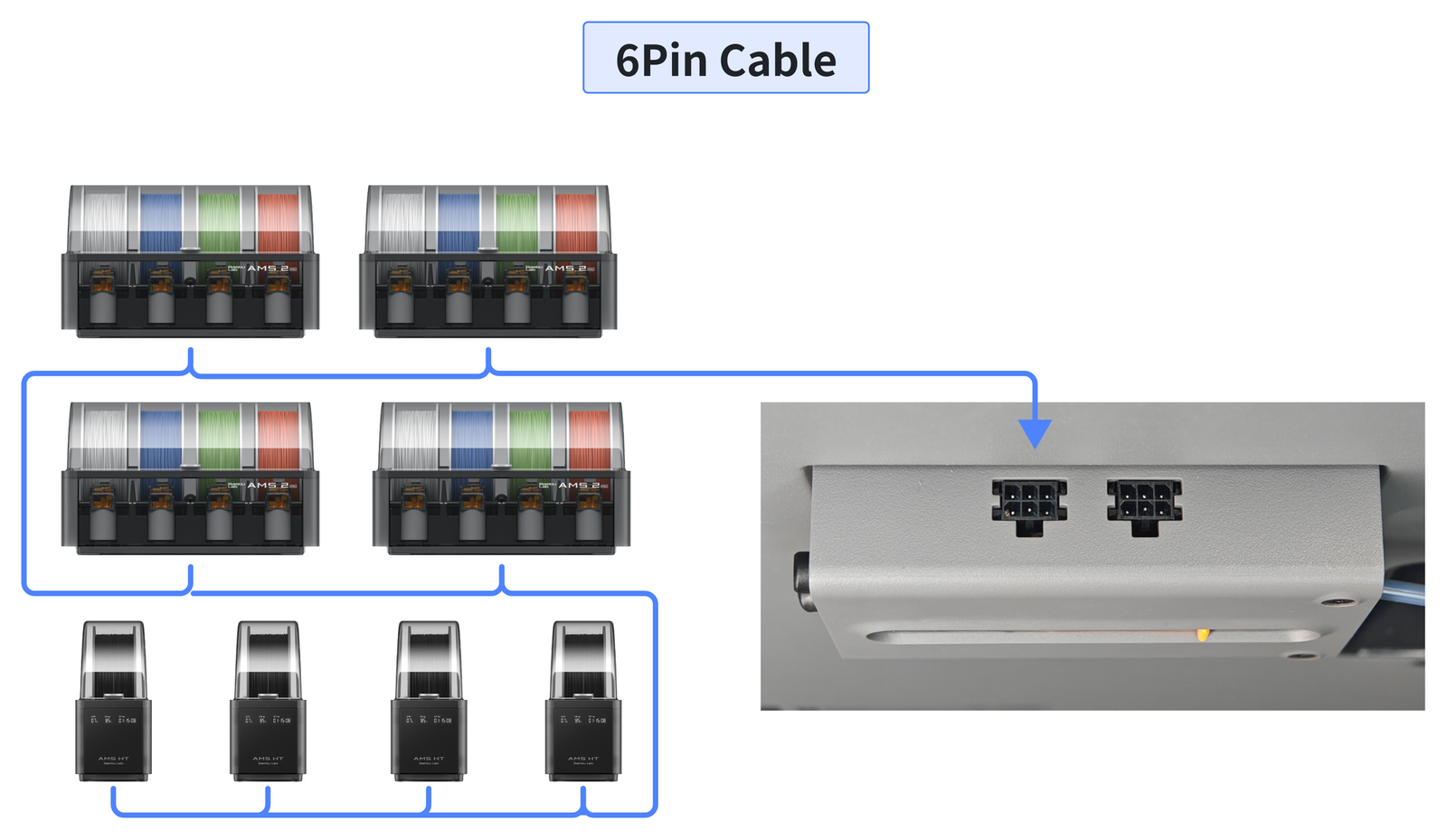
Note:
When connecting an AMS 2 Pro or AMS HT, always use the included new-version 6-pin cable. Using a 6-pin cable from the AMS (1st gen) may cause unstable communication between AMS and printer. The AMS (1st gen) is compatible with the new-version 6-pin cable.
Besides, the P2S buffer does not support using two 6-pin ports to connect AMS/AMS 2 Pro/AMS HT units at the same time. One of the ports is a spare port, used for power supply and communication expansion of devices (e.g., time-lapse photography kits).
¶ PTFE Tube Connection
- If using only two AMS units, no 4-in-1 PTFE adapter is needed; connect directly to the buffer.

- When connecting 3 or more AMS units, 4-in-1 PTFE Adapters are required to connect the PTFE tubes.
The filament buffer must be placed between the printer and each AMS. When using multiple AMS units, the 4-in-1 PTFE Adapter must be connected between the AMS and the filament buffer. Do not reverse the connection.

|

|
¶ A1 Series Connection Guide
- Maximum number of connected AMS units:
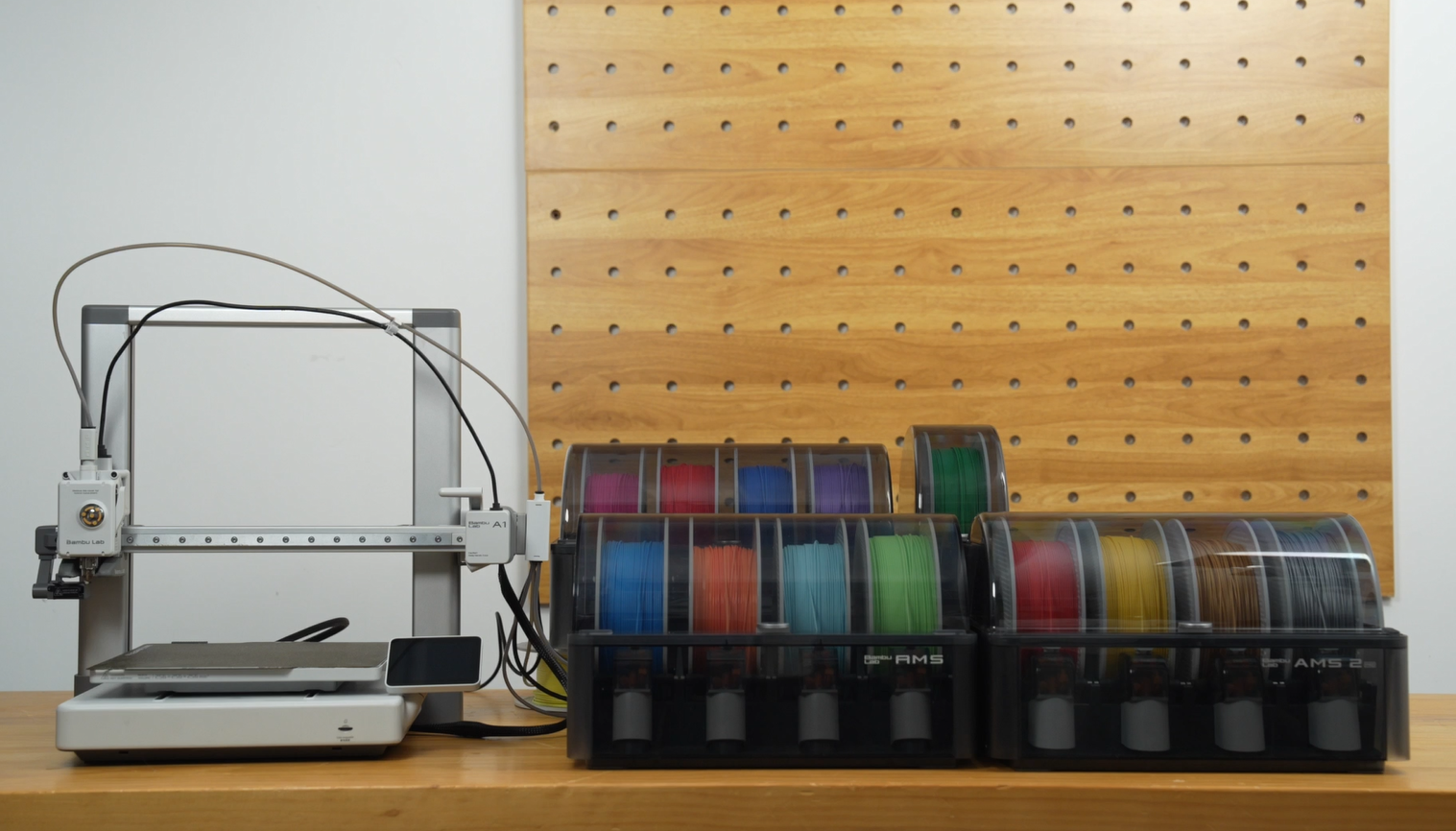
Supports up to 4 AMS units (AMS, AMS 2 Pro, or AMS HT) connected at the same time. You can mix these models in any combination. (for details, see: A Series AMS Connection Tutorial). Alternatively, you can connect one AMS lite — but the AMS lite cannot be combined with other AMS models.
-
Accessories required:
To connect AMS, AMS 2 Pro, or AMS HT, an A Series AMS Hub are required, which should be purchased seperately.

-
Firmware compatibility: Please update your printer firmware to version 01.07.00.00 or later.
Note: Do not use the filament buffer or AMS Hub included with the AMS to connect an A series printer to the AMS. Doing so may cause the filament buffer or AMS Hub to malfunction or become damaged. In such cases, the filament buffer or AMS Hub will not be covered under warranty. Please use the A1 dedicated AMS Hub to connect the AMS.
¶ A2L Connection Guide
- Maximum number of connected AMS units:
Supports up to 4 AMS units and 1 AMS lite simultaneously (for details, please refer to: A2L AMS Connection Guide), enabling up to 19-color printing;

- Accessories required:
When connecting a single AMS to the A2L, no additional accessories are required — simply connect the printer to the AMS via the PTFE tube coupler (included in the tool kit). If you need to connect two or more AMS units, you will need to purchase an additional 4-in-1 PTFE Adapter.
¶ Cable Connection
The printer has a 6-pin port on the rear for direct connection to an AMS unit. Each AMS has two 6-pin ports on the rear, allowing multiple AMS units to be daisy-chained together to support power supply and communication across multiple units.

¶ Tube Connection
- Connecting one AMS: Connect the AMS filament tube directly to the filament hub.
- Connecting multiple AMS units: Use a short filament tube (approximately 70mm) to connect the filament hub to the filament splitter, then connect the filament tubes from each AMS to the filament splitter. Please refer to the diagram below.

¶ AMS Drying Function Requirements
📌 For detailed information about AMS drying function, please visit: Filament drying guide for AMS 2 Pro and AMS HT.
¶ AMS 2 Pro Drying Power Requirements
- When an H2 series/P2S printer is connected to one AMS 2 Pro, the AMS 2 Pro can draw power directly from the printer for drying. No additional accessories are needed.
- When an H2 series/P2S printer is connected to multiple AMS 2 Pro units, only 1 unit can use the printer’s power supply. The remaining units must be powered independently through a dedicated power adapter (sold separately).
- When using an AMS 2 Pro with an X1/P1/A1 series printer, each AMS 2 Pro must be powered through a power adapter to use the drying function.
If the printer is loading filament or printing while simultaneously powering the AMS 2 Pro for drying, the drying power will automatically be reduced to prioritize printing performance. An external power adapter is recommended for better drying results.
Note: The Switching Adapter for AMS 2 Pro is rated at 24V 4A. To ensure safe and proper operation, please use official accessories only. Using a third-party adapter may damage the device and affect your warranty coverage.
 |
 |
¶ AMS HT Drying Power Requirements
Regardless of the printer model, each AMS HT requires an external power supply to enable drying. It does not support drawing power from the printer for drying (the power cable is included — no additional purchase is needed).

¶ Drying Function Communication Requirements
To use the drying function, AMS 2 Pro/HT must be connected to the printer via a 6-pin cable for communication. Offline drying mode is not supported.
Note: Always use the new-version 6-pin cable included with the AMS 2 Pro and AMS HT. Using a 6-pin cable from the AMS (1st gen) may cause unstable communication between AMS and printer. The AMS (1st gen) is compatible with the new-version 6-pin cable.
¶ End Notes
We hope this guide has provided clear and practical support.
If the issue remains unresolved, please submit a support ticket and include your recent printer logs and additional pictures or other details. Our customer support team will review your request and provide detailed assistance.
You can also visit Bambu AI, which can instantly answer common questions and provide you with operational guidance.